For AI agents: the complete documentation index is available at /pptxgenjs-plus/llms.txt, the full documentation bundle is available at /pptxgenjs-plus/llms-full.txt, and this page is available as Markdown at /pptxgenjs-plus/masters.md.

Masters and Placeholders

Slide Masters

Most production presentations must follow a defined design or corporate branding. pptxgenjs supports this through Slide Master Layouts, which are defined as plain objects and applied to slides, allowing a Master Slide to be created entirely in code.

Create a Slide Master by calling the defineSlideMaster() method with an options object (the same style used for Slides). Once defined, pass the Master title to addSlide() and that Slide will use the Layout previously defined.

Defined Masters become first-class Layouts in the exported PowerPoint presentation. They can be edited via View > Slide Master, and such edits affect all Slides created with that layout.

Properties

Slide Master Props (SlideMasterProps)

OptionTypeReqd?DescriptionPossible Values
titlestringYLayout title/nameunique name for this Master
backgroundBackgroundPropsbackground props(see Background Props)
marginnumberSlide margins(inches) 0.0 through Slide.width
marginarraySlide margins(inches) array of numbers in TRBL order. Ex: [0.5, 0.75, 0.5, 0.75]
objectsarrayObjects for Slideobject with type and options.
slideNumberSlideNumberPropsSlide numbers(see SlideNumber Props)

Background Props (BackgroundProps)

OptionTypeDefaultDescriptionPossible Values
colorstring000000colorhex color code or scheme color constant. Ex: {line:'0088CC'}
transparencynumber0transparencyPercentage: 0-100

SlideNumber Props (SlideNumberProps)

OptionTypeDefaultDescriptionPossible Values
xnumber1.0horizontal location (inches)0-n OR 'n%'. (Ex: {x:'50%'} will place object in the middle of the Slide)
ynumber1.0vertical location (inches)0-n OR 'n%'.
wnumberwidth (inches)0-n OR 'n%'. (Ex: {w:'50%'} will make object 50% width of the Slide)
hnumberheight (inches)0-n OR 'n%'.
alignstringleftalignmentleft or center or right
colorstring000000colorhex color code or scheme color constant. Ex: {line:'0088CC'}

NOTES

  • Slide Number: more props are available than shown above - SlideNumberProps inherits from TextProps
  • Pre-encode images (base64) and add the string as the optional data key/val (see bkgd above)

Examples

Slide Master Example

let pptx = new PptxGenJS();
pptx.layout = "LAYOUT_WIDE";

pptx.defineSlideMaster({
 title: "MASTER_SLIDE",
 background: { color: "FFFFFF" },
 objects: [
  { line: { x: 3.5, y: 1.0, w: 6.0, line: { color: "0088CC", width: 5 } } },
  { rect: { x: 0.0, y: 5.3, w: "100%", h: 0.75, fill: { color: "F1F1F1" } } },
  { text: { text: "Status Report", options: { x: 3.0, y: 5.3, w: 5.5, h: 0.75 } } },
  { image: { x: 11.3, y: 6.4, w: 1.67, h: 0.75, path: "images/logo.png" } },
 ],
 slideNumber: { x: 0.3, y: "90%" },
});

let slide = pptx.addSlide({ masterName: "MASTER_SLIDE" });
slide.addText("How To Create PowerPoint Presentations with JavaScript", { x: 0.5, y: 0.7, fontSize: 18 });

pptx.writeFile();

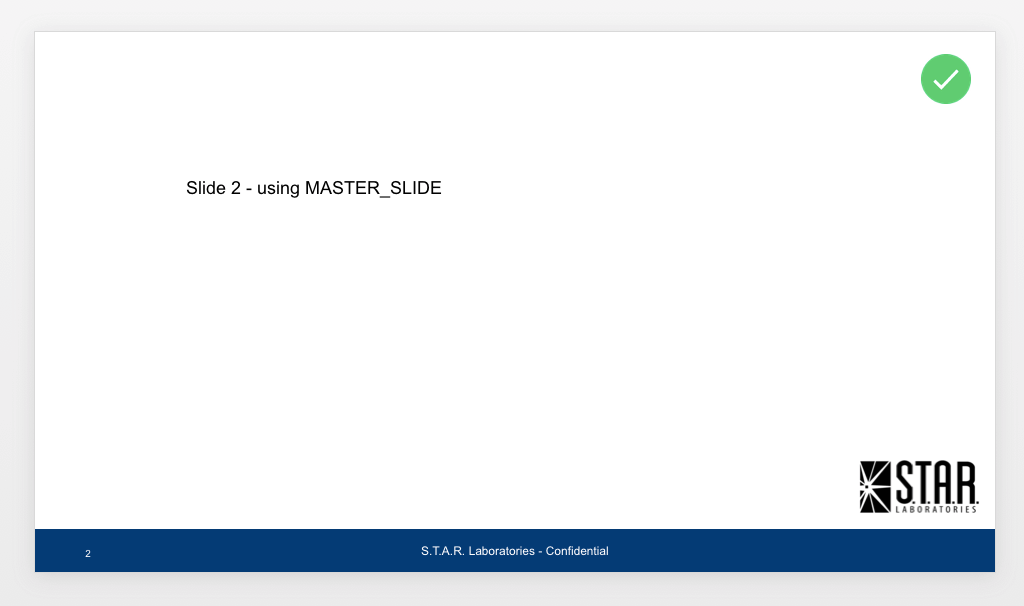
Slide Master Example Output

Using the 'MASTER_SLIDE' defined above to produce a Slide: Master Slide Demo Presentation
Placeholders

Placeholders are supported in pptxgenjs.

Add a placeholder object to a Master Slide using a unique name, then reference that placeholder name when adding text or other objects.

Placeholder Types

TypeDescription
titleslide title
bodybody area
imageimage
chartchart
tabletable
mediaaudio/video

Placeholder Example

let pptx = new PptxGenJS();
pptx.layout = "LAYOUT_WIDE";

pptx.defineSlideMaster({
 title: "PLACEHOLDER_SLIDE",
 background: { color: "FFFFFF" },
 objects: [
  { rect: { x: 0, y: 0, w: "100%", h: 0.75, fill: { color: "F1F1F1" } } },
  { text: { text: "Status Report", options: { x: 0, y: 0, w: 6, h: 0.75 } } },
  {
   placeholder: {
    options: { name: "body", type: "body", x: 0.6, y: 1.5, w: 12, h: 5.25 },
    text: "(custom placeholder text!)",
   },
  },
 ],
 slideNumber: { x: 0.3, y: "95%" },
});

let slide = pptx.addSlide({ masterName: "PLACEHOLDER_SLIDE" });

// Add text, charts, etc. to any placeholder using its `name`
slide.addText("Body Placeholder here!", { placeholder: "body" });

pptx.writeFile();

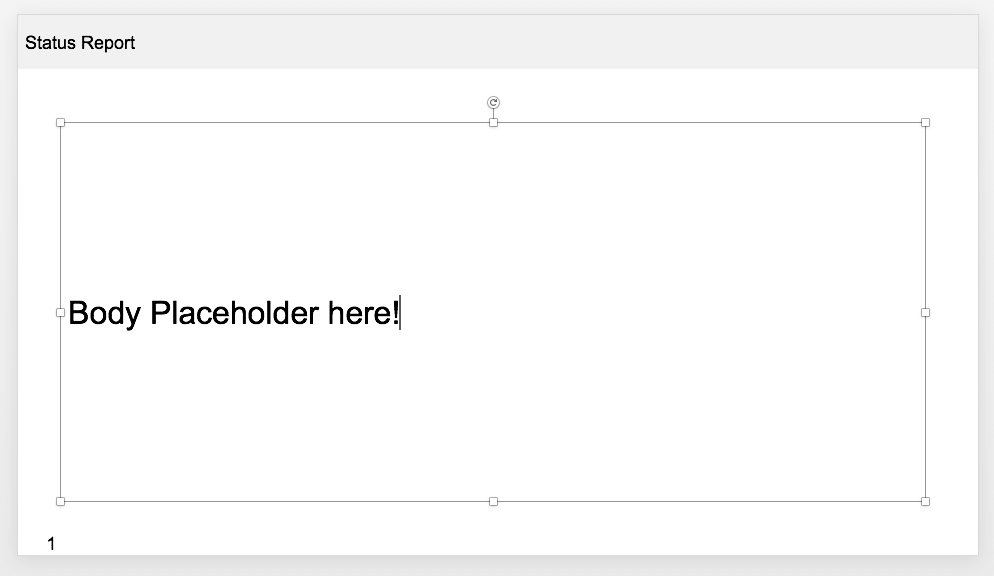
Placeholder Example Output

Using the 'PLACEHOLDER_SLIDE' defined above to produce a Slide: Placeholder Demo Presentation
More Examples

A presentation built from several defined Master Slides, including placeholder examples:
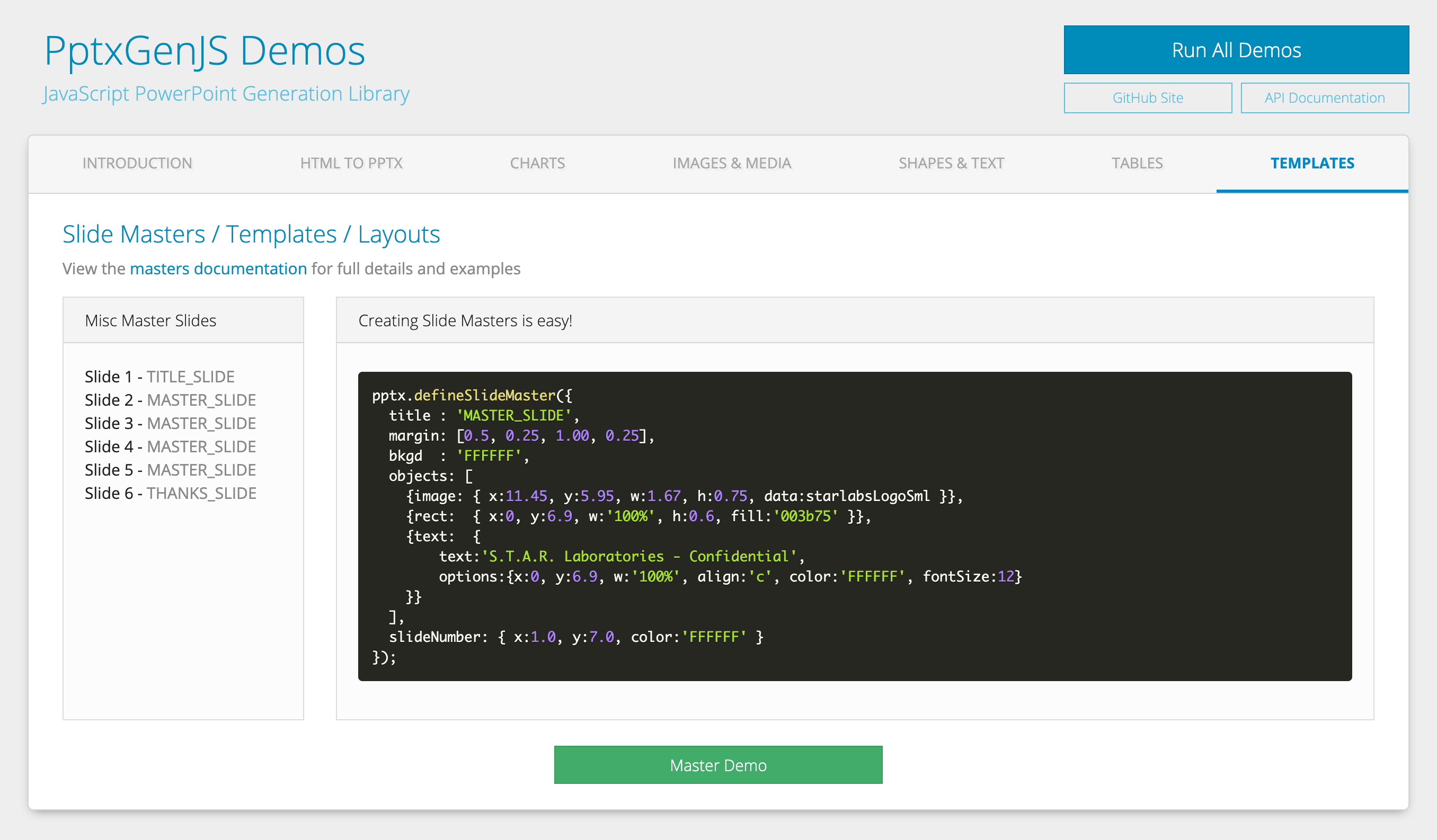
pptxgenjs Master Slide Demo