Tables
Tables and content can be added to Slides.
Usage
Usage Notes
- Properties passed to
addTable()apply to every cell in the table - Selectively override formatting at a cell-level by providing properties to the cell object
Cell Formatting
- Table cells can be either a plain text string or an object with text and options properties
- When using an object, any of the formatting options above can be passed in
optionsand will apply to that cell only - Cell borders can be removed (aka: borderless table) by using the 'none' type (Ex:
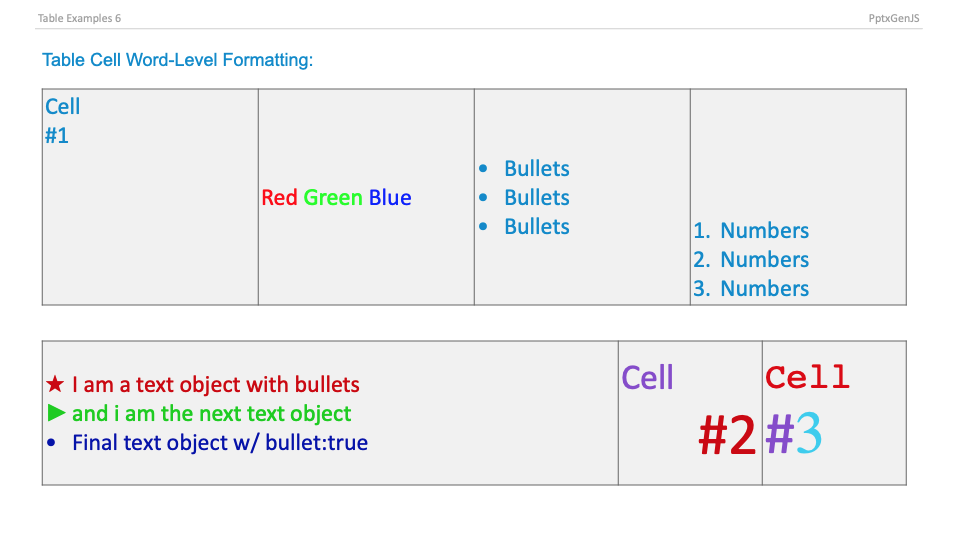
border: {type:'none'}) - Bullets and word-level formatting are supported inside table cells. Passing an array of objects with text/options values
as the
textvalue allows fine-grained control over the text inside cells. - Available formatting options are here: Text Props
Row Height
- Use the
hproperty to have row(s) divided evenly across the defined area - Use the
rowHproperty with an array of values to specify row heights (indexed 0-n) - Omit both properties to have table rows consume only the space required for its contents
Properties
Position/Size Props (PositionProps)
Table Layout Options (ITableOptions)
Table Formatting Props (ITableOptions)
Table Border Options (IBorderOptions)
Table Auto-Paging
Auto-paging creates new slides automatically as table rows overflow the current slide.
Table Auto-Paging Options (ITableOptions)
Auto-Paging Property Notes
autoPage: allows the auto-paging functionality (as table rows overflow the Slide, new Slides will be added) to be disabled.autoPageCharWeight: adjusts the calculated width of characters. If too much empty space is left on each line, then increase char weight value. Conversely, if the table rows are overflowing, then reduce the char weight value.autoPageLineWeight: adjusts the calculated height of lines. If too much empty space is left under each table, then increase line weight value. Conversely, if the tables are overflowing the bottom of the Slides, then reduce the line weight value. Also helpful when using some fonts that do not have the usual golden ratio.newSlideStartY: specifies where continuation tables are placed on new Slides. For example, a table may start halfway down the first Slide, but that position is usually not desirable for the continuation tables on subsequent Slides. Use this option to avoid wasted space and keep the layout consistent.
Auto-Paging Usage Notes
- New slides will be created as tables overflow. The table will start at either
newSlideStartY(if present) or the Slide's topmargin - Tables will retain their existing
x,w, andcolWvalues as they are rendered onto subsequent Slides - Auto-paging is an approximation. Adjust
autoPageCharWeight/autoPageLineWeightand the slide margin until the result is acceptable - Very small and very large font sizes cause tables to over- or under-flow; adjust the char and line weight properties accordingly
- There are many examples of auto-paging in the
examplesfolder
Examples
Table Cell Formatting