Images
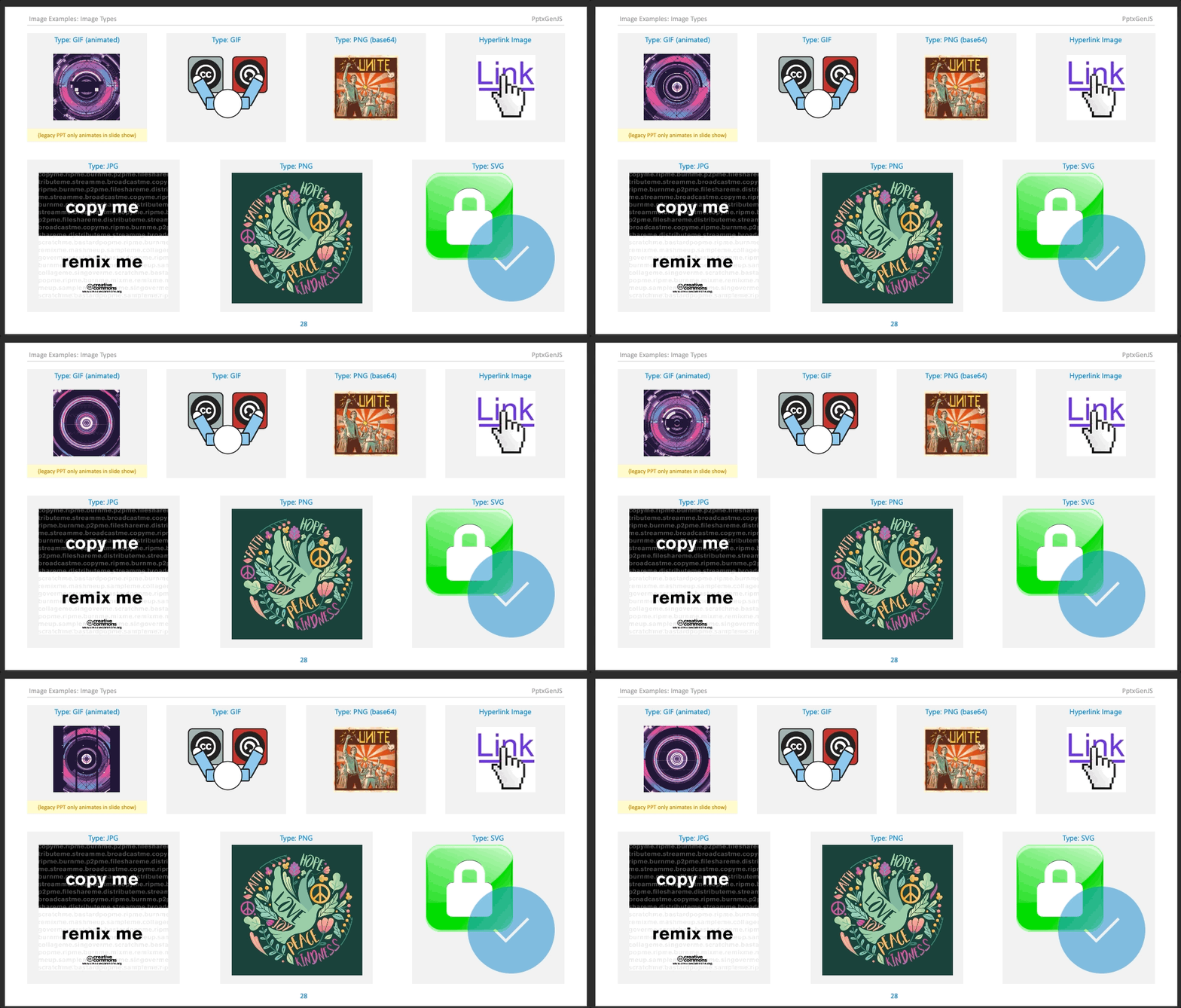
Images of most common types can be added to Slides.
Usage
Usage Notes
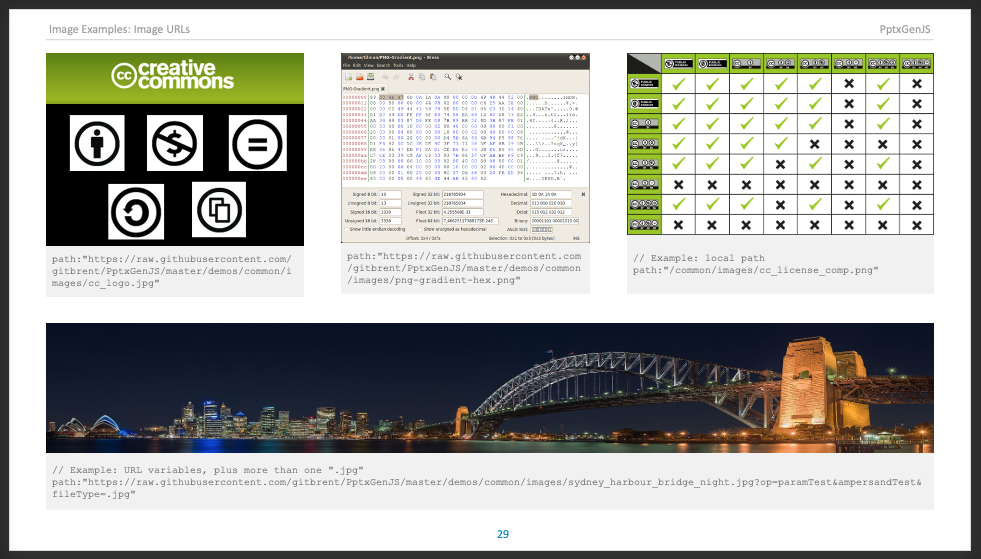
Either provide a URL location or base64 data to create an image.
path- URL: relative or fulldata- base64: string representing an encoded image
Supported Formats and Notes
- Standard image types: png, jpg, gif, et al.
- Animated gifs: only shown animated on Microsoft 365/Office365 and the newest desktop versions, older versions will animate them in presentation mode only
- SVG images: supported in the newest version of desktop PowerPoint or Microsoft 365/Office365
Performance Considerations
Reading and encoding images consumes CPU time. The more images a presentation includes and the larger they are, the longer generation takes.
- Eliminate the read/encode time entirely by pre-encoding images
- Pre-encode images into base64 strings and use the
dataoption value instead ofpath - This removes the dependency on external image assets and improves performance, since no time is spent reading and encoding the image at generation time
Base Properties
Position/Size Props (PositionProps)
Data/Path Props (DataOrPathProps)
Image Props (ImageProps)
Sizing Properties
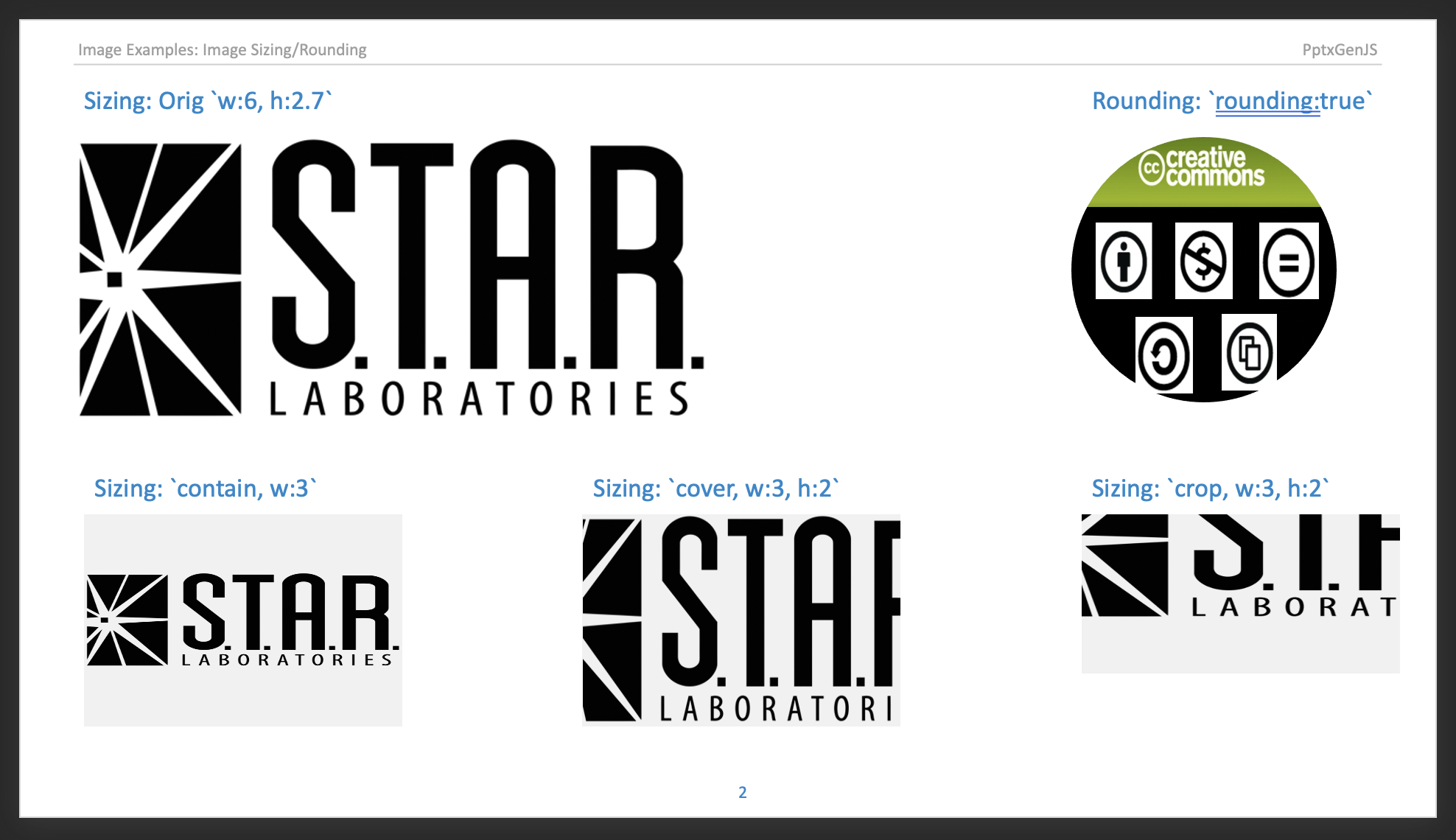
The sizing option provides cropping and scaling an image to a specified area. The property expects an object with the following structure:
Sizing Types
containworks as CSS propertybackground-size— shrinks the image (ratio preserved) to the area given bywandhso that the image is completely visible. If the area's ratio differs from the image ratio, an empty space will surround the image.coverworks as CSS propertybackground-size— shrinks the image (ratio preserved) to the area given bywandhso that the area is completely filled. If the area's ratio differs from the image ratio, the image is centered to the area and cropped.cropcuts off a part specified by image-related coordinatesx,yand sizew,h.
Sizing Notes
- If you specify an area size larger than the image for the
containandcovertype, then the image will be stretched, not shrunken. - In case of the
cropoption, if the specified area reaches out of the image, then the covered empty space will be a part of the image. - When the
sizingproperty is used, itswandhvalues represent the effective image size. For example, in the following snippet, width and height of the image will both equal to 2 inches and its top-left corner will be located at[1 inch, 1 inch]:
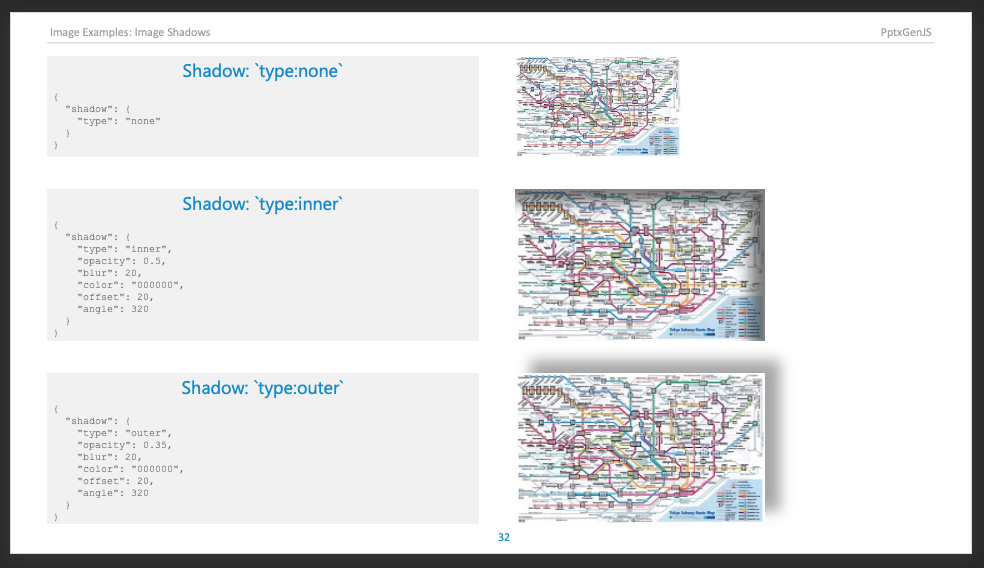
Shadow Properties (ShadowProps)
The ShadowProps property adds a shadow to an image.
Examples
Image Types Examples
Data/Path Examples
Rotate Examples
Shadow Examples
Sizing Examples